

Oneleet MCP is Live in ChatGPT and Claude
Run your compliance program from a prompt.
Oneleet is now a plugin in ChatGPT’s plugin directory and Claude’s connector directory. Connect it in one click, sign in with your Oneleet account, and your assistant works in your compliance program as you.
It sees what your role lets you see. It does only what your role lets you do. Everything it changes shows up in your audit log under your name.
Why it Matters
Compliance work is largely clicking. You check what's failing, chase vendor reviews, screenshot a setting, and upload it to the right control. Your assistant can now do that legwork with you from a prompt, and with visibility of who did what.
The Problem it Solves
AI is already good at legwork, especially the tedious kind.
The hardest part up until now has been letting AI near your compliance program safely.
Connecting an assistant used to mean creating an API key. A key works like a shared service account. Anything the assistant did showed up in the audit log under the key, not under a person, and someone had to store and rotate secrets.
That works for scripts and build pipelines, but your audit log could only tell you what changed, not who asked for it.
An MCP connection that operates as you solves this. Your assistant acts on your behalf, with your permissions, and your account name is next to everything it does. There's no secret to store, and access ends when you disconnect it.
What's in the Release?
- One-click install in ChatGPT and Claude. Find Oneleet in ChatGPT's plugin directory, connect it, and sign in. No developer mode, custom connector, or server URL to paste.
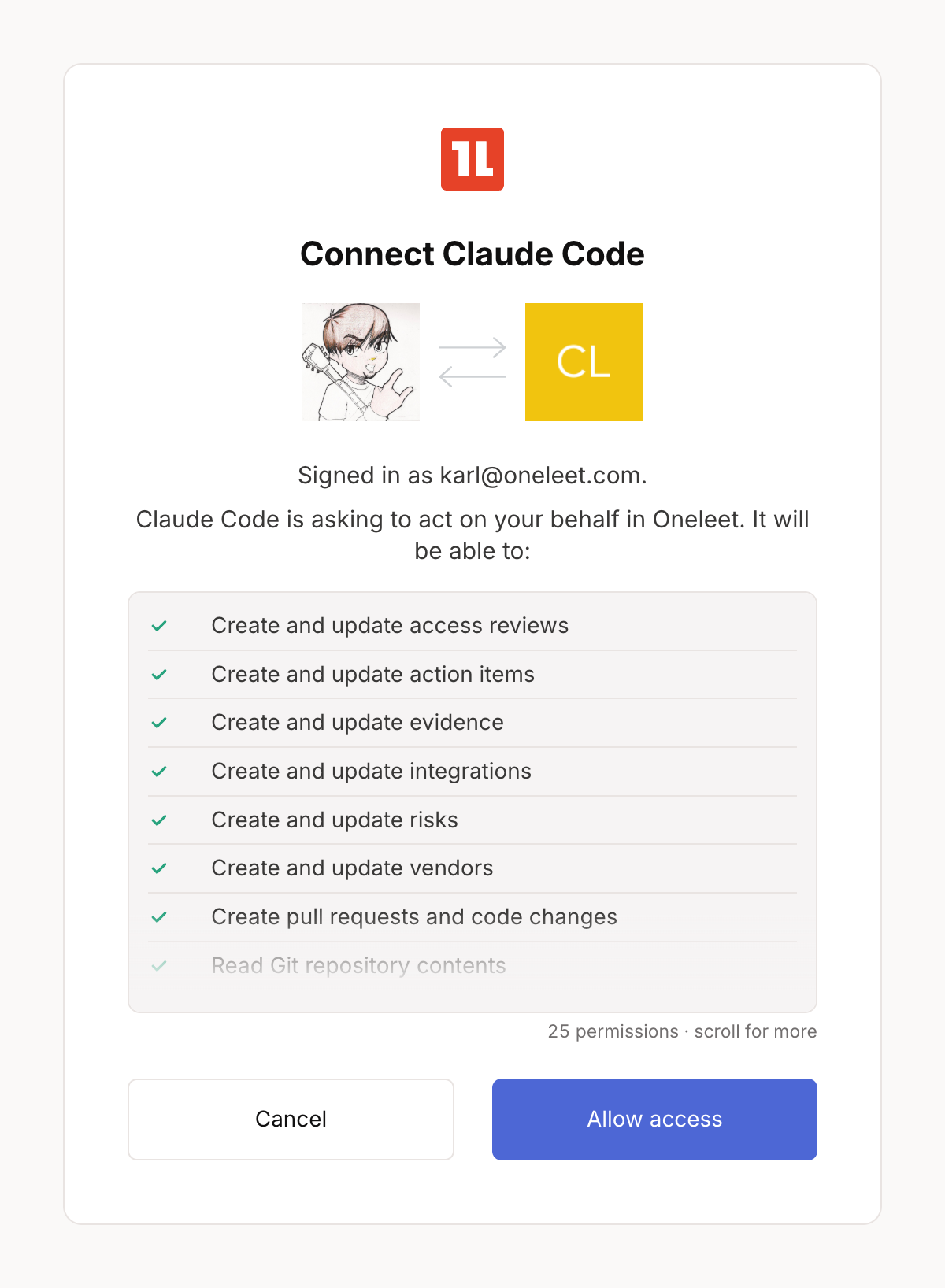
- It signs in as you. You log in with your Oneleet account, approve what the assistant can access, and pick your workspace. Every action it takes shows up in your audit log under your name.
- Your permissions only. The assistant can only see and do what your role allows. If your role changes, its access changes on the very next request.
- You confirm before anything changes. By default, ChatGPT and Claude run read-only requests on their own and ask you first before any tool that changes data. You can change that per tool, or for all of Oneleet, in your assistant's settings.
- Compliance and security in one place. Controls, evidence, policies, monitors, vendors, risks, access reviews, and trust center requests, plus your pentest, attack surface, application security, code security, and dependency findings.
- Works beyond ChatGPT and Claude. The same Oneleet MCP server also connects to Claude Code, Codex, Cursor, Devin, Google Antigravity, and Grok.
How it Helps Your Business
- Spend less time in the platform. Most of a compliance program is finding things and putting them where they belong. Ask what's failing, what's missing evidence, or which vendors need a security assessment, and get one answer instead of a dozen tabs.
- Delegate the busy work, keep the accountability. Your assistant does the clicking, and the audit trail still shows a real person behind every change. That's what your auditor and your customers' security teams want to see.
- Close security findings faster. Your pentest and scanning results sit in the same conversation as your controls and evidence, so triage, the fix plan, and the proof happen in one place.
Three Things to Try First
These are the top three workflows our customers can leverage right away.
1. Start Your Day With a Summary
Ask your assistant what needs your attention. It reads across failing monitors, controls missing evidence, and open vendor reviews, and then it hands you a short list of where to start.
It's good at this because it reads the description of every tool it can use and works out a sensible plan on its own. You still decide what to act on.
"What needs my attention in Oneleet today? Group it by urgency and tell me where you'd start."Then go a level deeper.
"Which of our SOC 2 controls are failing, and what do we need to do to remediate them?""Which of our vendors needs a security assessment?"And go even deeper with multiple configured plugins working together. Example with Atlassian creating tickets and assigning owners:
"We just had a pentest conducted. Can you summarize all the findings and open JIRA tickets via @Atlassian for each one and assign them to me with a severity level matching the severity level of the pentest finding? Also set the Due Date for each ticket based on the configured SLA for our tenant."2. Collect and Upload Evidence
Not every tool you use has a first-party Oneleet integration. For those, your assistant can fill in. Give it the export or the data, and it uploads it as evidence to the right control. If your assistant is also connected to that other system, it can pull the data itself.
That's a lot less screenshotting, cropping, and uploading by hand.
"Upload this export as evidence for our access review control. Then list the controls still missing evidence this quarter."3. Triage Security Findings in Bulk
Attack surface scans can return a lot. Instead of working through findings one at a time, ask your assistant to group them, rank them, and draft a remediation plan your team can actually work through. The same works for pentest findings, application security issues, code security findings, and dependency vulnerabilities.
"Pull our open attack surface findings, group them by root cause, and draft a remediation plan ranked by severity."It also works alongside your other connectors. If your assistant is connected to Jira, then one prompt can turn a pentest report into tickets:
"We just had a pentest. Summarize all the findings, open a Jira ticket for each one, assign them to me with a severity that matches the finding, and set each due date from our configured SLA."Built to Be Trusted
An assistant that can change your compliance program needs guardrails. Here's what we put in place before launch.
- It uses our public API and nothing else. Every MCP tool calls the same public API our customers already use, and each tool maps closely to an endpoint. We are continuing to add new endpoints to our MCP every week.
- Every tool says whether it changes data. OpenAI's and Anthropic's reviews check that each tool is labeled read-only or data-changing, and named so you can tell at a glance. That's what lets ChatGPT and Claude run reads on their own and stop to ask before a change.
- We pentested it first. MCP OAuth went through a penetration test before launch, and we fixed the findings. Then we used the Oneleet MCP to work through them.
MCP OAuth operates with the same permissions each user would have on the platform. You can delegate how you work in Oneleet safely, and you'll see every action tied to that person in the logs. API Service Keys do not behave this way, and operate more as a service account type of principal.
Go deeper: Connecting AI assistants with OAuth
How People Are Already Using It
Customers started building with the Oneleet MCP before it ever reached the ChatGPT and Claude directories.
A SOC 2 Checklist, Turned Into a Game
Ian Chan was working through SOC 2 Type II readiness and wanted to make it more fun. So he built a terminal-style text adventure (a MUD, for the old-school among us) with Slack, Claude, and the Oneleet MCP. Claude pings him in Slack between meetings, and together they chip away at the checklist.
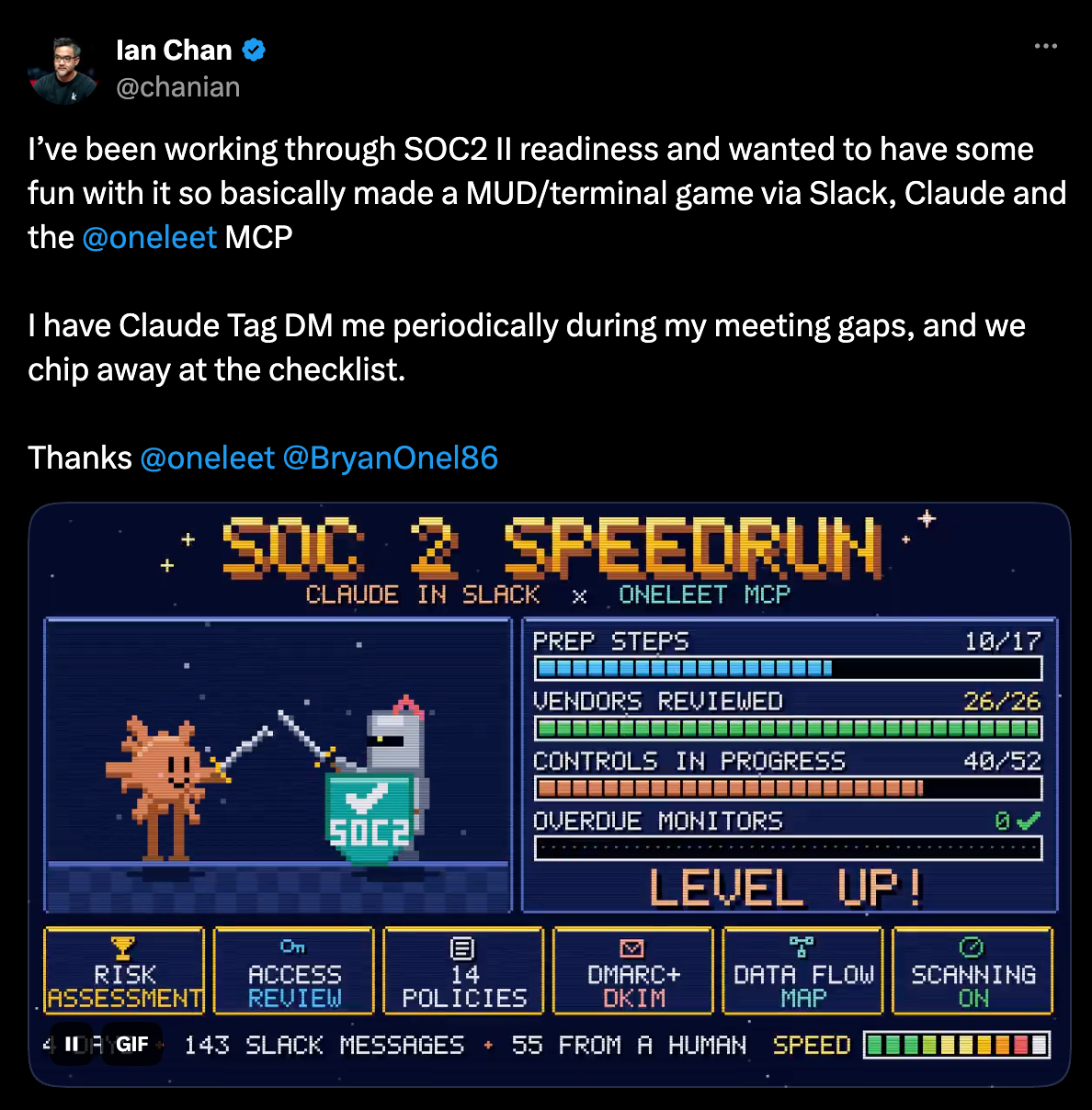
The checklist didn't change. How he got through it did. That's the point of putting your compliance data where your tools already are.
Early Reviews From Customers
Customers have been sharing their own experience on LinkedIn:
- Prodos on how the Oneleet MCP changed their day-to-day compliance work
- A customer build that runs on the Oneleet MCP
Connect Oneleet MCP Today
It takes about a minute.
- Open Oneleet in ChatGPT's plugin directory or Claude's connector directory.
- Click Install plugin in ChatGPT or Connect to Claude in Claude, then sign in with your Oneleet account.
- Review what your assistant is asking to access, click Allow access, and choose your workspace.
- Ask your first question: "Which of my SOC 2 controls are failing?" In ChatGPT, start your message with @Oneleet. In Claude, turn Oneleet on from the + menu under Connectors.
For more information on connecting AI assistants with OAuth, check out our technical guide.
Availability
- Who can connect: Any member of a Oneleet workspace. No Oneleet admin setup is needed, and what the assistant can do is limited by your role. On ChatGPT Business, Enterprise, and Edu, or Claude Team and Enterprise, an admin on that side may need to add or enable Oneleet first.
- Assistants: ChatGPT, Claude (web, desktop, and mobile), Claude Code, Codex, Cursor, Devin, Google Antigravity, and Grok.
- Pricing: Included with your Oneleet plan.
- Automations: For scripts, CI pipelines, and shared automations, use an API service key instead.
- Docs: Connecting AI assistants with OAuth.
Already a Oneleet customer? Connect it today and ask what needs your attention.
Your compliance program, from your phone, on the couch. Or while you're walking the dog.
Oneleet MCP FAQs
What is the Oneleet MCP server?
It's how AI assistants connect to your Oneleet workspace. MCP (Model Context Protocol) is an open standard that lets assistants like ChatGPT and Claude read from and act in other applications. Our MCP server calls the Oneleet public API, so your assistant works with your real controls, evidence, vendors, risks, and security findings.
Is it safe to connect an AI assistant to Oneleet?
The assistant acts as you and can never do more than your role allows. Access tokens expire after 15 minutes, and every action is attributed to you in the audit log. Only connect assistants you trust, and review changes when your assistant asks you to confirm them.
Can the assistant change data in Oneleet?
Yes, if your role allows it and you approved it at sign-in. It can upload evidence, update monitors, edit vendor assessments, and more. By default, ChatGPT and Claude ask you to confirm before any tool that changes data. Attack surface, application security, and code security results are read-only.
Do I need an admin to set it up?
Not on the Oneleet side. Any workspace member can connect their own assistant. What it can do is limited by that member's role. On ChatGPT Business, Enterprise, and Edu, or Claude Team and Enterprise, an admin on that side may need to add or enable Oneleet first.
Which AI assistants work with Oneleet?
ChatGPT, Claude (web, desktop, and mobile), Claude Code, Codex, Cursor, Devin, Google Antigravity, and Grok all work with Oneleet.
What's the difference between signing in and using an API service key?
Signing in connects an assistant as you, for your own work. An API service key is a service account for scripts, CI pipelines, and shared automations. Its actions are attributed to the key, not to a person.
Can I connect more than one workspace?
One workspace at a time per assistant. To switch, disconnect and sign in again, then pick the other workspace.
 Technical Content Writer