

MDM Enrollment on Mac: Profile vs. Apple Business Manager

There are two ways to enroll a Mac in Oneleet MDM (mobile device management): with a profile, or zero-touch through Apple Business Manager (ABM, now Apple Business).
Start by answering these two questions:
- Is this a Mac your team already uses, or a new one?
- Can you accept that employees could remove device management?
The first question is about the wipe. The profile enrolls a Mac you already have without one, and a new Mac enrolls itself through Apple Business. Moving a Mac you already have into Apple Business is what takes a wipe.
The second question is about your risk appetite. The profile can be removed, and Apple Business enrollment can’t. If you or your customers require that employees can’t remove management, then move every Mac to Apple Business before the date you need that control.
Important: Either option takes you from monitoring device security to enforcing it, and you can start with the Macs your team uses today.
So which one should you use? For most teams, the answer is both:
- Enroll the Macs you have today with the profile.
- Make Apple Business how every new Mac arrives.
What Are the Two Ways to Enroll a Mac?
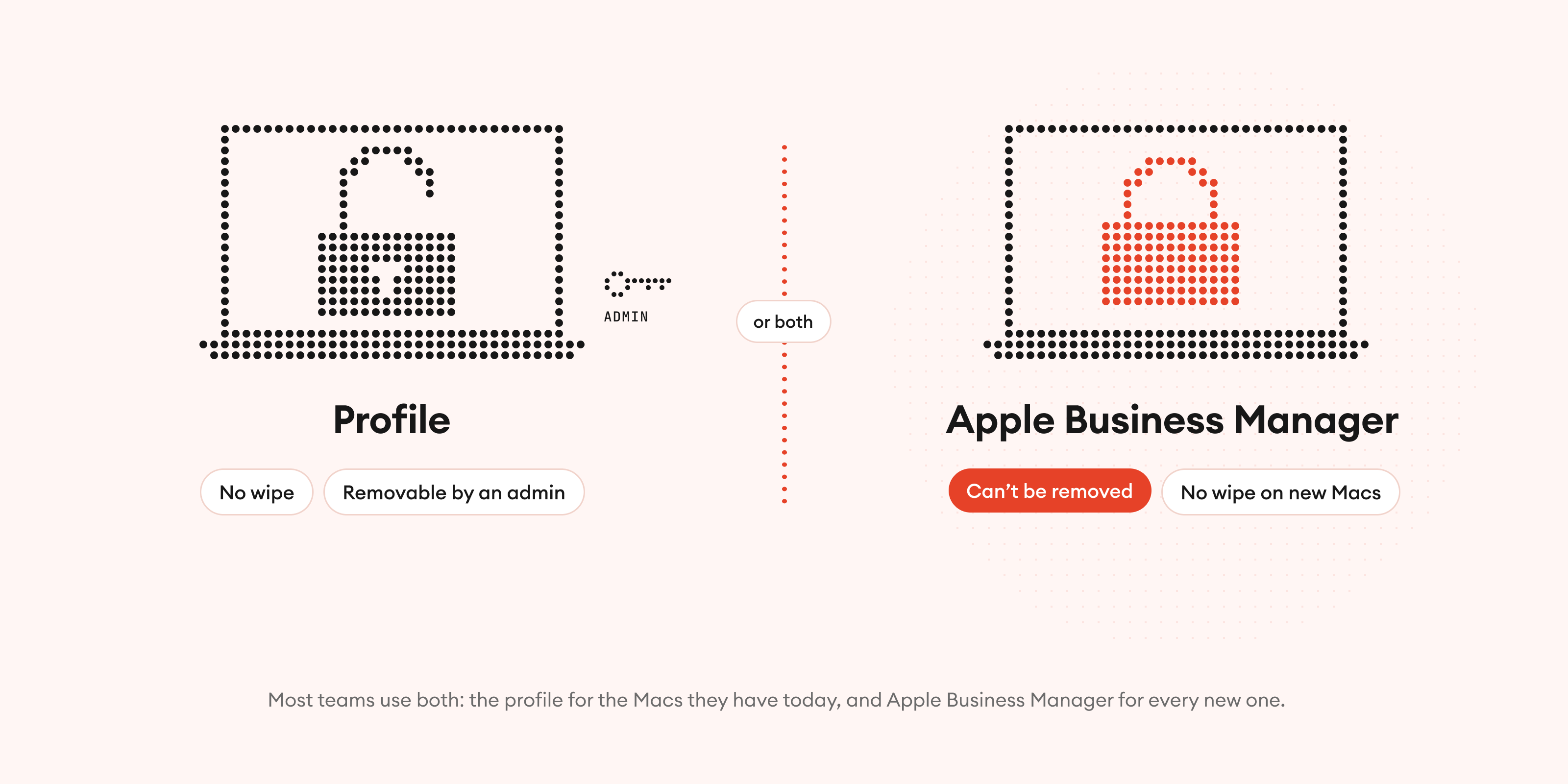
There are two ways to enroll a Mac in Oneleet MDM: with a profile, or zero-touch through Apple Business (Apple's portal for the devices your company owns), using automated device enrollment (ADE). The profile works on any Mac you have today. Apple Business is for Macs registered to your company, and employees can't remove it.
Method | How it works | Wipe needed? | Can it be removed? | Our advice |
|---|---|---|---|---|
Profile | Manual self-enrollment. Someone installs Oneleet's enrollment profile on the Mac and approves it with an admin password | No | Yes | Use it for the Macs you already have |
Apple Business Manager | Automated device enrollment (ADE). A Mac registered to your company enrolls itself during setup, with nothing for the employee to install | No for new Macs or Macs already in Apple Business. Yes for existing Macs added with Apple Configurator | No | Use it for every new Mac |
"Do we have to wipe everyone's laptop?"
We hear this all the time. The answer is no.
The profile enrolls the Mac as it is. A wipe only happens when you move a Mac you already have into Apple Business with Apple Configurator (Apple's app for adding a Mac to your account yourself).
Do both methods get the same Oneleet MDM?
Yes. Profile enrollment counts as real management. Either way, the Mac is compliant by default: your framework's device requirements become enforced settings.
FileVault is enforced, with the recovery key escrowed. You can install apps from a catalog, and lock or wipe the Mac if it's lost or someone leaves. The enrollment method only decides whether someone can take management off.
So why not enroll everyone with a profile?
The catch with the profile is that it can be removed. Apple Business enrollment can't.
Oneleet shows you when a Mac unenrolls, but detection isn't prevention, either. Until someone re-enrolls that Mac, nothing is enforced on it.
Who can remove the MDM profile?
Only someone with an admin account on the Mac can remove the profile. If your employees aren't local admins, then risk goes down to nearly zero.
So use the profile if you can accept the risk.
Go deeper:
Which Macs Can Use Apple Business Manager?
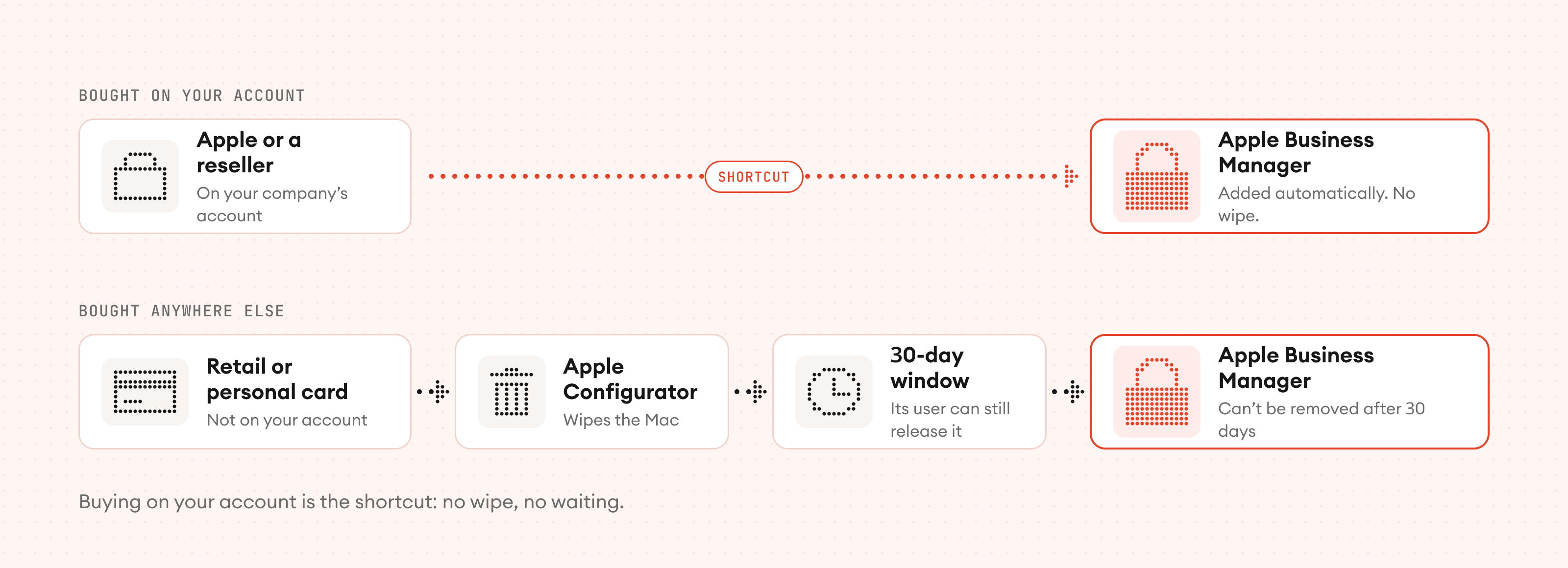
Whether a Mac can use Apple Business generally comes down to how it was bought.
What if a Mac is already in another MDM?
A Mac can only be enrolled in one MDM at a time. Plan before you remove the old MDM, so the Mac isn't left unmanaged in between.
If you're switching providers, time the move around your current MDM's renewal date. And if your team relies on deeper Apple features, check what you might lose before you switch.
Go deeper:
What Do We Recommend?
We recommend using both enrollment methods as a rollout plan:
Every Mac you have today: if it’s already in Apple Business, switch it to Oneleet there. Otherwise, enroll it with the profile now.
Every new Mac: buy it through Apple or a reseller that adds it to your Apple Business account, and it enrolls itself at setup. Apple Business needs a D-U-N-S number, which usually takes 1 to 2 weeks to get. Once you have it, a Oneleet engineer can take it from there.
Profile-enrolled Macs: move them to Apple Business when they’re replaced or reassigned, or sooner if your requirements change.
That gets your existing Macs managed without anyone rebuilding their laptop. Each time an old Mac is replaced, more of your fleet has management that can’t be removed.
Your Mac | How to enroll it | Wipe needed? | Can it be removed? |
|---|---|---|---|
A Mac you have today | With the profile | No | Yes, by anyone with admin rights on it |
A Mac you have today that’s already in Apple Business | Switch it to Oneleet in Apple Business. If another MDM manages it, release it there first. | No | No |
A new Mac | Zero-touch through Apple Business | No | No |
A Mac that needs management that can’t be removed, and isn’t in Apple Business | Add it with Apple Configurator, or replace it with a new Mac | Yes, unless you replace it | No. A Mac added with Apple Configurator can still be released during its first 30 days. |
How Did We Roll It Out at Oneleet?
We rolled out Oneleet MDM on our own fleet the same way we recommend, and we didn't ask anyone to wipe their laptop to do it.
Wiping every laptop would have cost each engineer 1 to 2 days: a day to back up, a day to restore, and no shipping, approving, or putting out fires in between. Our compliance team's auditor work would have slipped by the same 1 to 2 days.
So we enrolled our existing Macs with the profile. Leadership's laptops move to Apple Business when they're replaced, and every new Mac we buy enrolls itself at setup.
We took the same trade-off we're recommending. Until those Macs are replaced, someone with admin rights could remove the profile. We accept that for now, we watch for it, and every replacement closes the gap.
When Isn't the Profile Enough?
The profile isn't enough when your employees must not be able to remove management. That's the deciding factor.
A customer commitment, an auditor, your own risk appetite, or a device with especially sensitive access can make the answer yes. If so, then plan to move every Mac to Apple Business before the date you need that control. Enrolling with the profile in the meantime still beats leaving Macs unmanaged, but it doesn't meet that requirement.
What does moving an existing Mac take?
Moving an existing Mac into Apple Business means a wipe with Apple Configurator. Plan for backups and downtime, or replace it with a new Mac that's registered to your account when you buy it.
How Do You Set Up Zero-Touch Enrollment Through Apple Business Manager?
Whether a new Mac lands in Apple Business Manager is decided when you buy it, not when you set it up.
Get a D-U-N-S number
Get a D-U-N-S number if you don’t have an Apple Business account yet. Your company may already have one, so check first. Apple uses it to verify your company, and getting one usually takes 1 to 2 weeks. Once you have it, a Oneleet engineer can take it from there.
Buy through Apple or a participating reseller
Apple keeps a list of Preferred Device Enrollment Resellers by region: https://support.apple.com/en-us/118208
Confirm the link before you order
The reseller has to connect the purchase to your Apple Business account. Buying from a store alone doesn’t.
Make Oneleet the default for new Macs in Apple Business
After that, new Macs come into Oneleet on their own, with nothing else to do. This happens on a regular sync, so it isn’t instant.
Assign each new Mac to its employee in Oneleet
A Mac that enrolls automatically shows up as managed but has no user until you assign one.
How Do You Keep a Hybrid Rollout on Track?
A hybrid rollout stays on track when someone owns it. Without an owner, a gradual transition drifts and risks creating shadow IT.
Pilot with a small group first
Then roll out to everyone with clear instructions.
Set a deadline
for enrolling the Macs you have.
Track which Macs use the profile
and name who follows up if one unenrolls.
Decide when each of those Macs moves to Apple Business
at replacement, at reassignment, or in a scheduled migration.
Revisit the plan when a customer commitment or your security needs change
A hardware refresh is a good time to move a Mac to Apple Business, but it shouldn't delay a requirement that applies sooner.
Confirm every Mac is actually managed and its settings are applied
An agent connection on its own isn't proof.
Get Started with Oneleet MDM
Set it once, and every laptop stays on it.
Already a Oneleet customer? We'll help you get enrolled. A Oneleet engineer works with your team.
Evaluating Oneleet MDM? Book a demo or get a quote. The Oneleet agent is included. MDM is a per-device monthly charge, separate from your all-in platform price. You pay for the machines you actually manage, not for your headcount.
Mac Enrollment FAQs
Which MDM enrollment method should I choose?
Most teams should use both: the profile for the Macs you have today, and Apple Business for every new Mac. If your employees must not be able to remove management, then use Apple Business for every Mac.
Do I have to wipe my Mac to enroll it in Oneleet MDM?
No. The profile enrolls a Mac without wiping it. Moving an existing Mac into Apple Business with Apple Configurator does wipe it.
Do I need Apple Business Manager to use Oneleet MDM?
No. The profile works on any Mac, with no Apple Business Manager account. You'll want one for zero-touch enrollment of new Macs.
Can employees remove MDM from their Mac?
Profile enrollment can be removed by someone with admin rights on the Mac. Apple Business enrollment can't, apart from Apple's 30-day window for Macs added with Apple Configurator.
What about personal devices?
Personal devices stay monitored by the Oneleet agent, not managed. Oneleet MDM is for company-owned devices.
Technical Content Writer